

This section contains answers to frequently asked questions about the game, missing from other sections of the guide.
Basic Game Information
On Friday.
Contacting Administration and Complaints
Complaints are accepted only via VK community PM and email.
To file a complaint, you must:
1) Specify the server
2) Specify your character name
3) Specify the offender’s character name
4) Attach a screenshot or link to a video to the appeal.
Otherwise, your appeal will be ignored.
Game Settings and Files
First, let’s define the terms:
Go to the address C:\ Users \ Username \ AppData \ Local \ WTL \ Saved \ Config (Example for Windows 10. In other versions, the folder location may differ).
We see the file “MapMarkers_Digits1_Player1.bin”. There might already be a file “MapMarkers_Digits2_Player2.bin”, or there might not be – it doesn’t matter. Just delete it and follow the guide.
Copy this file and paste it right there. You get the file “MapMarkers_Digits1_Player1_Copy.bin”
Look for the file “QuestStates_Digits2_Player2.bin” – it will be there for sure.
Copy part of its name “Digits2_Player2” – select the file, press F2, select the necessary text, copy.
Next, simply rename the previously copied file from “MapMarkers_Digits1_Player1_Copy.bin” to “MapMarkers_Digits2_Player2.bin”
Enter the game and enjoy the map markers.
Your old markers that were (if any) on Player2 will be replaced by new ones – from Player1. Including data will be overwritten on the server!
Windows Settings
If you don’t see the AppData folder or file extensions, you can enable their display (for Windows 10):
Open any folder, absolutely any. In the top menu, click “View” and check the boxes “File name extensions” and “Hidden items”.
For other versions of Windows:
Open “Control Panel”, then “File Explorer Options”, then the “View” tab, then uncheck “Hide extensions for known file types” and select “Show hidden files, folders, and drives”. Click “OK”.
Such manipulations may require Administrator rights.
You need to delete the file where graphics parameters are stored. After deleting the file, you will have to perform all settings again.
1) Open Explorer.
2) Paste this address into the address bar. %AppData%\..\Local\WTL\Saved\Config\WindowsClient
3) Delete the file GameUserSettings.ini
To send logs, you need:
1) Open Explorer.
2) Paste this address into the address bar.
%AppData%\..\Local\WTL\Saved\Logs
3) Find and send the file wtl.log
You need to pull this file out immediately after freezing, and before restarting the game.
Technical Problems and Errors
Players residing in Ukraine need to use VPN to access the game.
This is because game servers are located in Russia, and Ukrainian providers restricted access to them in accordance with sanctions.
This can happen if you have mobile internet or, for example, Windows Defender prevents the game from connecting to the server (sometimes Windows asks: “Allow app to access network” – this is it)
This article might help check this:
https://remontka.pro/exclusions-defender-windows-10/
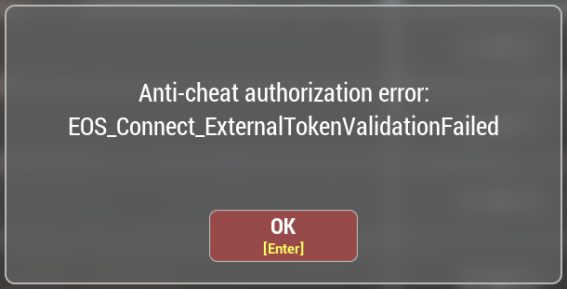
If the screen shows error EOS_NoConnection, this is almost always related to ISP issues, temporary restrictions by Roskomnadzor, or DNS server failures in Russia. This error means you have no connection to Epic Games service servers responsible for Easy-Anticheat (servers are located abroad).
https://remontka.pro/flush-dns-cache-windows/
https://lifehacker.ru/nastrojka-dns-servera/
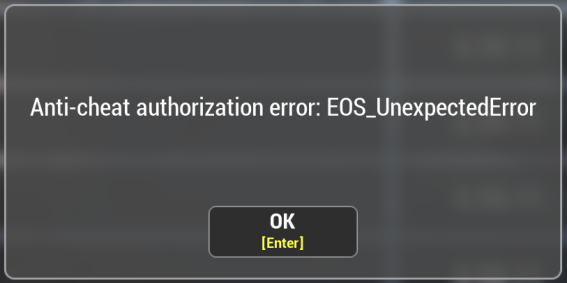
If the screen shows error EOS_UnexpectedError, you should just wait. Usually, the problem passes in half an hour.
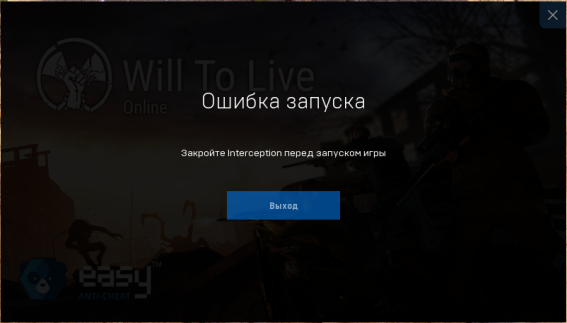
1. Download the program distribution: Download.
2. Copy the folder “command line installer” from the archive to any convenient directory.
3. Place the file “uninstall.cmd” into the copied folder: Download.
4. Run “uninstall.cmd” as Administrator (RMB on the file, menu option “Run as Administrator”).
5. Restart the computer.
https://drive.google.com/file/d/1Im3hMCFwJ7S_DyR7P-6ymOFOQdf5djyg/view
https://drive.google.com/file/d/1Mq9yqYTEtsrnMIsguwWy-YsUeKtmeEv9/view
EAC problems occur for the following reasons:
1) Outdated operating system installed. We recommend using the latest version of Windows 10 or Windows 11. Use Windows Update Center to install the latest Windows version.
2) Required libraries not installed:
Try installing these libraries:
https://aka.ms/vs/16/release/vc_redist.x64.exe
https://download.microsoft.com/download/c/d/2/cd274fa6-0d64-4b70-bd90-ec9a2e395da4/vcredist_x64.exe
3) Windows system files are damaged.
– Open the Start menu;
– Type “cmd”;
– Right-click on Command Prompt and select “Run as administrator”;
– Enter the command “DISM.exe /Online /Cleanup-image /Restorehealth and wait for DISM to update”;
– Enter the command “sfc /scannow” and press Enter;
– Follow the instructions to check file integrity.
4) Try reinstalling EAC manually. The anti-cheat installer is located in the “EasyAntiCheat” folder in the game installation directory. Use the file EasyAntiCheat_Install.bat.
In short – just something wrong with Windows.
P.S. If this error happens to everyone at once, it’s an anti-cheat side problem. You should just wait for the issue to be resolved.
1) Turn off the router for 10 minutes
2) Turn on the router
3) Clear Windows DNS Cache https://remontka.pro/flush-dns-cache-windows/
4) Restart the computer after clearing DNS cache
5) Try to enter the game
To reduce their number, try enabling the “cache” game files option in the “game” section. This can lead to longer loading at the initial stage, but reduce “micro-freezes” during the game.
To solve sound and microphone problems, try installing these libraries:
https://www.microsoft.com/ru-RU/download/details.aspx?id=40784
https://www.microsoft.com/ru-ru/download/details.aspx?id=48145
Also after try clicking “Reset current”, “Apply” and “OK” in sound settings.
If you are not using any third-party software (including macros, crosshairs, etc.) that might cause disconnection from servers, then you need to ensure stable operation of your internet. There are no other reasons or additional options.
Bans and Anti-cheat
Game administration does not manage or influence VAC bans.
What is VAC?
VAC (Valve Anti-Cheat) — an automated system created to detect cheats on users’ computers. If a user connects to a VAC-secured server from a computer with recognized cheats installed, they will be banned by the VAC system and will no longer be able to play this game on servers with VAC protection.
A VAC ban is final, non-negotiable, and cannot be removed by Steam Support. If you were mistakenly VAC banned, it will be removed automatically.
More details on the official Valve/Steam page: https://help.steampowered.com/ru/faqs/view/571A-97DA-70E9-FF74#consequences
Donations and In-game Purchases
To top up credits, it is recommended to use the Market.VK.Play platform via this link: https://market.vkplay.ru/shop/115/
The code to top up the account balance can be activated on any of the platforms (Steam or VKPlay) directly in the game (shop – activate code).
Account Inventory is a convenient storage for donation items, which is not limited by weight or number of slots. It automatically receives all purchased items from the premium shop and opens access to them from any server or character. When activating Premium status, you can not only take but also add items to the account inventory, facilitating the transfer of donation items between characters and servers.
Premium storage can only contain items purchased in the shop for donation, with the exception of food and gasoline, which cannot be put back.
Gameplay and Restrictions
No. Such a function was not, is not, and will not be available.
The ability to exchange items and tokens between players or interact with the mailbox appears at character level 5 and after 8 hours of play on a specific character.