Upon installing the game, every user undertakes to read and agree to the license agreement. This document governs the rules of using the game, clarifying what is allowed and what is prohibited. Its main goal is to ensure fairness, safety, and an engaging experience for all participants. Ignorance of the rules does not exempt one from responsibility, and in case of their violation, the administration reserves the right to block the account.
Types of bans applied by the administration:
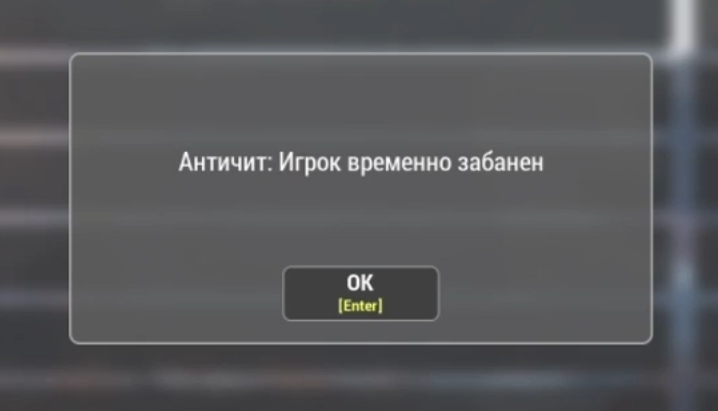
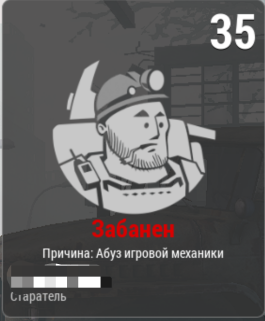
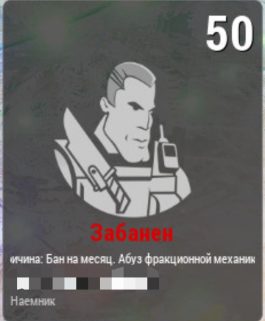
- Character ban for a month. In the character selection menu, the specific character will display the reason for the ban and the duration of the punishment;
- Permanent character ban. Only the reason for the ban will be indicated on the character. The character remains blocked, with no option to delete it to create a new one;
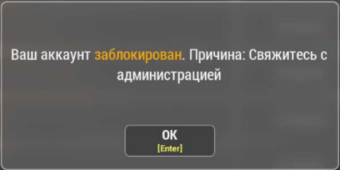
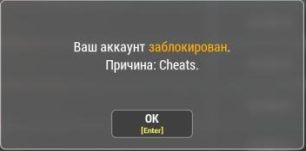
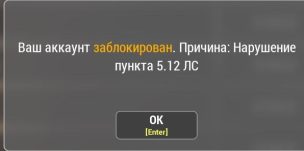
- Permanent account ban. On the server selection page, there will be a notification window about the ban. Consequently, access to all game servers is lost;
- Permanent hardware ban. You will not be able to play the game even with a new account. When creating a new account, the ban will be applied automatically.
The choice of punishment depends on the severity of the violation, the frequency of such actions, and their impact on other game participants.
How can a player get into the risk zone and be banned?
The game administration does not engage in mass searches for violators, with the exception of the anticheat system, which automatically detects the use of third-party software, such as cheats.
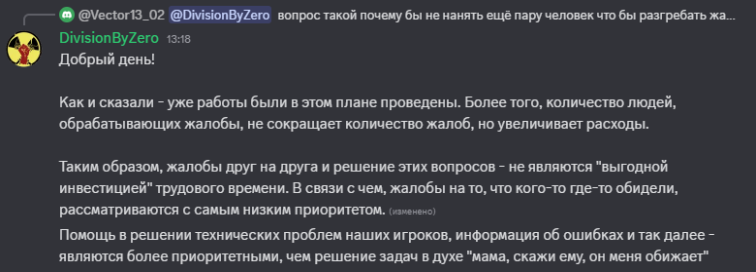
However, most violations are recorded thanks to reports from other players. If someone notices a violation, they can submit a complaint through the built-in game system or contact the administration directly. Upon receiving a complaint, the administration checks it and, if necessary, analyzes game logs to confirm the fact of the violation. If the violation is confirmed, a decision is made on the appropriate punishment. The more accurate and substantiated the complaint, the higher the probability of punishment for the violator.
P.S. Do not abuse reports on others. And do not be surprised if the project administration does not respond to your complaints. Believe me, they have plenty to do without you.
Where can I find the full agreement?
The current version of the license agreement can be found on the game’s page on Steam and VK Play.
What is this section about?
In this section, we will review the key points of the license agreement that are important for every player to know. The information is based on personal experience and stories from other participants and is not an official interpretation. We strive to help you better understand the basic rules and their consequences.
Prohibitions and Restrictions
According to the LA terms, the user is prohibited from:
You cannot sell the game itself or its parts (for example, mutant models, characters, or music tracks), share it on the internet, rent it out, or earn money using the game without the developers’ permission. For example, you cannot install the game in an internet cafe and charge money for its use.
Your game account belongs only to you. It cannot be sold or transferred to other people. A permanent ban is provided for violating this rule. Such cases are usually revealed thanks to the observance of other players: when the behavior, playstyle, or voice on a character changes drastically. In this case, they can gather information on the player and send it to the administration for verification.
Mainly understand: this restriction is primarily designed to protect you from undesirable consequences!
Risks when transferring an account:
- Loss of account. The person you gave access to can change the password and take the account forever.
- Loss of resources. Your game items, in-game currency, and progress can be destroyed or stolen.
- Damage to the clan. If your character is in a clan, their actions can harm the whole team.
- Violation of rules. Cheats may be used on your account or rules broken, leading to a ban.
Risks when using someone else’s account:
- Punishment for violations. If the account owner used cheats or broke rules before you, responsibility may fall on you.
- Account return by the owner. At any moment, the original owner can take back access, leaving you without everything you invested.
Conclusion: Transferring an account is a direct violation of the rules and a source of many problems. To avoid blocking and data loss, use only your own account and do not transfer it to others.
It is prohibited to attempt to uncover the technological aspects of the game, gain access to its source code, modify or decompile it, or create derivative works based on this data. This includes any attempts to modify game files, add new content, or “copy” the game.
For example, you cannot take game files, modify them to add a new mode, character, location, or other content, and then post the modified version on the internet. Any attempts to interfere with the game code are a violation of the license agreement and may entail legal liability.
It is prohibited to remove, disable, or bypass any restrictions set by the developers. This includes attempts to bypass paid elements of the game or use them without purchasing.
For example, you are trying to gain access to paid character customization elements (unique clothing or skins) using third-party software or game vulnerabilities.
It is prohibited to export, re-export, or distribute the game (or its adapted versions) in violation of current laws and regulations. This rule is particularly relevant for countries under international sanctions or restrictions.
It is prohibited to independently translate the game into other languages, as well as to distribute created translations.
For example, you cannot take the game’s text files, translate them into another language, and publish your translation on the internet or offer it to other players. Translating the game without the developers’ permission violates copyright. Use the game only in officially available language versions.
It is prohibited to use programs that give you game advantages, as well as to advertise, sell, or transfer such programs to other users.
The built-in anti-cheat system (Easy Anti-Cheat) is responsible for detecting the use of third-party software. If a violation is recorded, the player receives an automatic hardware ban. The ban is not appealable. Game technical support does not consider such cases, as it does not influence the anti-cheat’s decisions. If you are sure you did not break the rules, you can contact the anti-cheat technical support directly.
Additionally, suspicious activity can be noticed by other players. If they send a complaint to the game administration, the game logs of the suspect can be reviewed by the administration manually. If the use of third-party software is confirmed, the violator’s account will be blocked.
For example, you found a program that automatically aims for you in a shooter (“aimbot”) and started using it, simultaneously sharing a link to download it among friends. It is prohibited not only to use but also to advertise such a program (in game chat, forums, social networks like Discord, VKontakte, Facebook, YouTube, and others). This will inevitably lead to the blocking of the account or device. Play fair and avoid third-party programs.
Important Technical Note:
Currently, the built-in anti-cheat is extremely sensitive to any background activity from third-party applications. This applies not only to obvious cheats but also to utility software:
- Auto-clickers;
- Macros (including software for gaming mice and keyboards);
- Scripts for action automation.
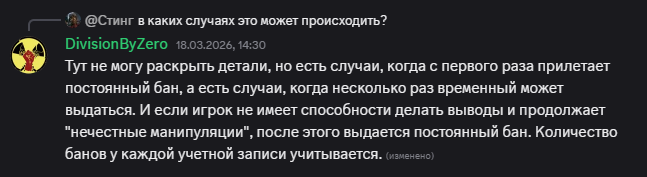
I can’t disclose all the details, but there are cases where a permanent ban is issued on the first offense. There are also cases where a temporary ban is applied several times before escalating.
If a player is unable to learn from their actions and continues engaging in “unfair manipulation,” a permanent ban is eventually issued. The number of bans on each account is taken into account.
Signs of Anti-Cheat Conflict:
If the system forcibly returns you to the main menu (kicks you out) when attempting to connect to the server, this may be a warning about a suspicious process running. In this case, you must immediately disable all third-party programs, otherwise, a temporary access restriction may turn into a permanent account ban.
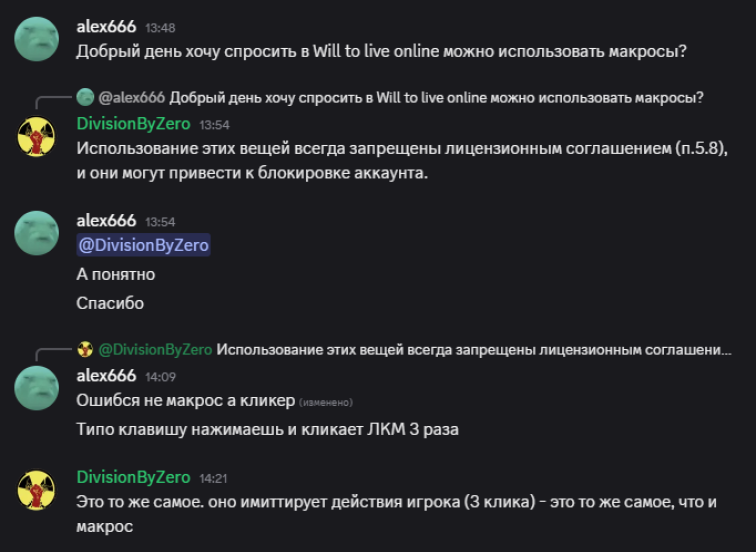
It is prohibited to use third-party programs that imitate player actions to automate the game process. This includes any programs that perform monotonous actions for you (resource gathering, quest completion, skill leveling, etc.). Advertising, selling, and transferring such programs to other users is also prohibited.
How is the use of such programs detected?
- Player reports. Other users may notice suspicious behavior. For example, they might try to talk to you or interfere with your actions but receive no reaction if a program is playing for you.
- Activity logs. The game administration can analyze your character’s behavior and detect signs of automation.
Example of violation: You use a program that automatically gathers resources, mines ore, catches fish, spins slot machines, smelts ore, levels weapons at the shooting range… All these actions violate the rules.
Conclusion: Using programs to automate the game process (even if it does not bother other players) is a violation of the license agreement. It leads to the loss of your account. Play fair and avoid using third-party software.
It is prohibited to use bugs (errors) and game vulnerabilities for personal gain. If you find a bug, you are obliged to report it to the administration, not exploit it.
Example of violation: You found a way to duplicate resources (dupe) thanks to an error in game mechanics. Using this, you enrich yourself: selling duped items to NPCs or other players, and buying valuable things with the money received.
What can abuse lead to?
Violators often give themselves away through excessive activity — mass sales, suspicious accumulation of resources, or fast progress, which attracts the attention of other players and the administration.
Not only violators fall under the ban, but also those connected with them. For example, if you bought duped items or participated in a deal, even without knowing the origin of the resources, you can also be blocked.
Conclusion: Using bugs violates the fairness of the game process and can lead to the blocking of the accounts of all participants connected to the violation. Be careful when interacting with players whose resources or money raise suspicions.
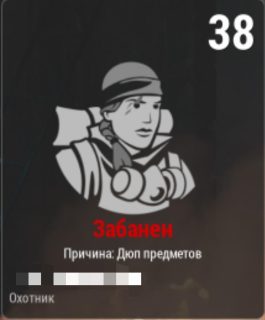
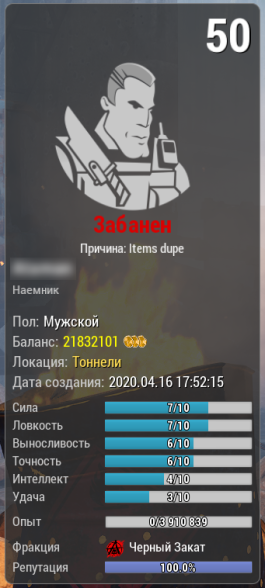
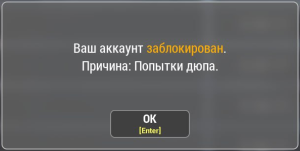
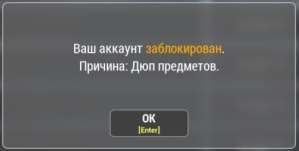
It is prohibited to sell in-game items and currency for real money, as well as to buy them from other players for real money. This applies to any trade deals where real money is exchanged directly between players, bypassing the game developers.
This restriction was introduced to protect players from unfair deals that can lead to the loss of money or valuable items. Instead of buying in-game items from other players for real money, it is recommended to purchase donation goods in the game store (e.g., a repair kit or class change certificate) and sell them to other players for in-game currency. Thus, you can get the desired items, support the game developers, and avoid the risk of losing your resources.
Conclusion: Trading real money for in-game items and currency violates the game rules and can lead to account blocking. Instead, support the developers through official donations.

It is prohibited to use the game or its elements in any way not provided for by this Agreement. This includes any actions that go beyond the normal use of the game.
Example of violation: You cannot use images or materials from the game in advertising, commercial projects, or other purposes without the developers’ permission.
Players often express their emotions, which sometimes leads to insults and unfounded criticism. However, it is important to remember that criticism should be constructive, not demeaning. The game administration carefully monitors user behavior and does not allow manifestations of disrespect towards itself. Account blocking may follow such actions.
Example of violation: You wrote in the game chat: “Developers are scammers, they stole my money.” If this is false information, you have violated the game rules.
Conclusion: Mutual respect is important for maintaining a healthy atmosphere in the game. Be attentive in your statements and try to criticize constructively, avoiding insults and false claims.
It is prohibited to interfere with official game broadcasts (information about which is published on game resources), as well as streams supported by the game administration. This includes actions aimed at bothering streamers during their game, for example, hunting streamers to ruin their plans or intentional sabotage.
Example of violation: You found out that a popular streamer is playing the game and intentionally follow them in the game to interfere with their actions. This is a violation.
Who are “administration-supported streamers”?
Currently, there is no official list of streamers supported by the game administration. However, there are streamers whose names are mentioned in the game’s credits, as well as users with the “creators” role on the official Discord server of the game. This is more of a symbolic designation, and most of these streamers have not created content for the game for a long time.
In practice, cases of bans for “stream sniping” have not been recorded yet. If a streamer who is not among the supported ones tries to scare you with the threat of a ban, do not worry.
Nevertheless, if a streamer interacts with the game administration live (e.g., doing an interview), it is better to refrain from appearing in their frame or performing actions that could be perceived as provocation. In such situations, everything happens in plain sight, and the risk of causing a negative reaction increases.
Conclusion: Maintain fairness in the game and respect streamers, especially if they have administration support. Interfering with broadcasts or targeted intrusion into someone else’s game can lead to punishment.
Abuse is the exploitation of weak points in game mechanics to gain an unfair advantage or interfere with the game process of other players. The most common examples of abuse occur on servers with the option to disable PvP (on no-PK servers), where players can use their invulnerability to cause problems for others.
Examples of abuse:
- Obstructing other players’ interactions: For example, you stand in a doorway and do not let other players leave the room, stand in front of the crosshair, preventing them from interacting with objects (bags, furnaces, storages, NPCs), or attacking mobs.
- Interference in PvP: While in neutral mode (no-PK) or on a same-faction account, you stand in front of the crosshair so that the player cannot attack an enemy, as they cannot deal damage to an ally (without risking losing reputation) or a neutral player (since they are immortal).
- Intentional baiting: For example, you crawl under the crosshair of a same-faction player farming a Phalanx so they accidentally lose reputation, and thus you could kill them with impunity.
- Breaking mechanics in no-PK mode: For example, in no-PK mode, a player cannot receive damage from other players. Attempts to kill such a player using chemical grenades or artifacts (i.e., bypassing the usual method of killing) are also a violation.
Consequences of abuse: If you use abuse to harm other players, knowing the game rules, they can record the violation and report it to the administration. In such a case, the violation will be reviewed, and players using abuse will be punished.
Conclusion: Using vulnerabilities and abuses to disrupt the game process or interfere with other players is unfair play. Violators can be blocked by the game administration.
It is prohibited to intentionally impact game servers and other game resources to damage them, reduce performance, or perform other destructive actions. This includes DDoS attacks, hacking, as well as any other attempts to disable servers.
Example of violation: You decided to conduct a DDoS attack on the game server to disrupt game activity or damage the server’s operation in the interests of other players or out of revenge against the developers. This is a violation.
Conclusion: Attacks on game servers or any attempts to disrupt their operation are serious violations that can lead to legal consequences and the blocking of your account.
You cannot agree with another player to lose to you on purpose to achieve a specific goal.
Punishment for violation:
For fixed fights, punishment is usually provided in the form of a temporary character ban for up to one month. To apply the punishment, it is sufficient for someone to record the fact of the violation (e.g., with a screenshot or video) and send it to the game administration.
Examples of violations:
- Reputation laundering or chevron farming. A player from one faction specifically allows a player from another faction to kill their character to gain reputation or chevrons. Such an agreement between players is obvious and easily recorded.
- Recapturing points in the Foothills. Players from different factions capture fortifications in turn, avoiding combat actions and not dealing damage to each other. This is done to farm PvP points without real battles.
- Assisting the opposing faction. A player consciously helps the opposing faction, for example, leaking information about the location of allied players or their equipment.
Result: Fixed fights violate the game rules and seriously affect the balance, destroying fair competitive interaction. The game administration strictly punishes such actions, so it is better to avoid such situations.

This phrase means that in the case of imposing sanctions (ban), the game administration:
- Is not obliged to provide you with a detailed explanation of the reasons for the block.
- Is not obliged to share evidence (e.g., screenshots or logs) on which the decision was based.
- Will not reveal the identity of those who reported you.
What to expect when contacting the administration?
If you received a block, your attempts to request clarification may remain unanswered. This is especially likely in the following cases:
- If you have had previous bans. The administration may consider your appeals unfounded if you have violated the rules more than once.
- If your appeal is incorrectly formatted. Insults, threats, or profanity in the message can lead to your request being ignored. In extreme cases, you may be blacklisted, which will deprive you of the opportunity to contact the administration.
Result: Before submitting a complaint or request for clarification, make sure your message is written politely and with arguments. Remember that the game administration has the right not to provide feedback, even if you consider the sanctions unfair.

Restrictive Measures for Toxic Behavior in the Game
In February 2021, the game administration announced a crackdown on toxic behavior among players.
Players who use direct insults, humiliate the honor and dignity of others using profanity in a rude form, or incite interethnic hatred will be subject to blocking.
What is meant by blocking?
- Violators will be deprived of access to voice and text chat on the character where the violation was recorded.
- The block is imposed for life, without warnings and no right of appeal.
- The causes of the conflict (who started first) are not taken into account – responsibility is borne by each participant of the altercation.
Important:
- Players who submit complaints without sufficient grounds (e.g., due to personal dislike) may face ignoring of their appeals or even blocking.
- The use of profanity itself is not considered a violation, as the game is intended for an audience of 18+.
What to do if you encounter a toxic player?
- Try to resolve the conflict yourself.
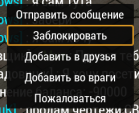
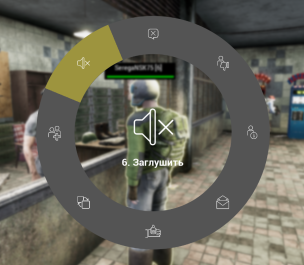
- Block the player for yourself:
- To block chat: click on the player’s nickname in the chat and add them to the blacklist.
- To block voice: approach the character, press F, and in the radial menu, disable the microphone.
- As a last resort, you can send a complaint about the violator to the game administration.

These measures are aimed at creating a comfortable atmosphere in the game. Use complaints reasonably and respect other members of the gaming community!
Clan Leader Ban
The clan leader is a public face who bears responsibility not only for their actions but for the entire clan, including all its participants. Their behavior and actions reflect the reputation of the clan. If the leader breaks the game rules, it puts the future of the entire clan at risk.
The game administration does not support violators and does not make concessions in such situations. Therefore, do not count on transferring clan management rights from the banned character to another player.
What happens to the clan if the leader gets banned?
- The clan is not disbanded, but its further development is under threat.
- It is impossible to appoint new deputy leaders.
- Point conversion becomes unavailable, which seriously slows down clan development.
For low-level clans, the consequences may not be so critical – players can create a new clan, transfer resources, and start over. But for high-level clans, this can lead to a complete “freeze” of activity.
How to protect yourself and your clan?
- Follow the game rules. If you doubt you can avoid violations, transfer clan leadership to another character (e.g., an alt you play less often).
- Monitor your members’ actions. Violations by clan members can negatively affect the leader. Even if he was unaware of the violations, responsibility still falls on him.
- Approach the choice of leader responsibly. The clan leader is not just an organizer, but also the representative of the clan, whose actions determine the fate of all members.
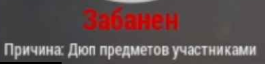
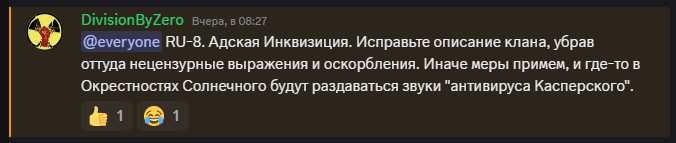
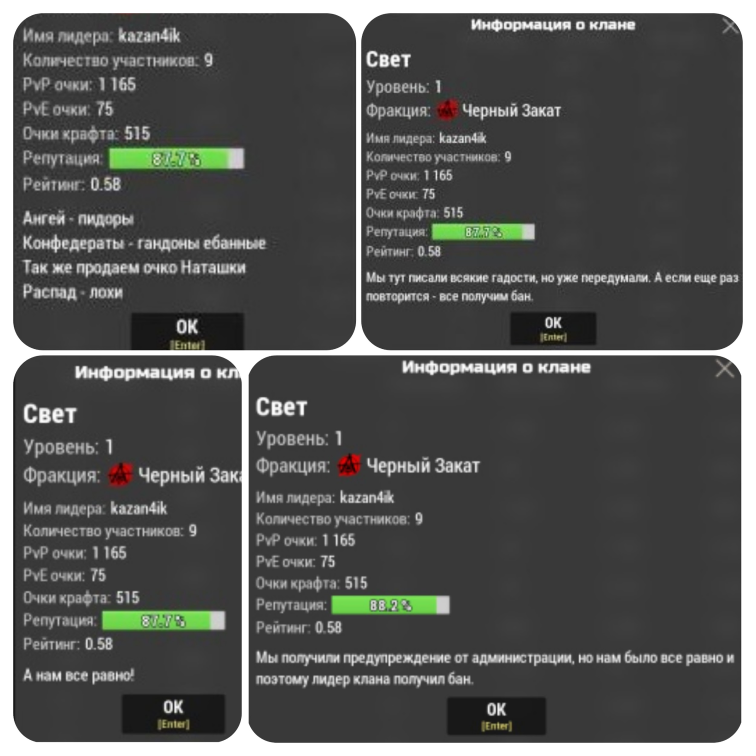
Note: A reason for a ban might also be an inappropriate clan description (containing insults, prohibited symbols, or violating ethical norms). In such cases, the administration usually issues a preliminary warning requiring the text to be changed. Ignoring this requirement leads to immediate sanctions against the leader.